How to check whether VAT is charged in your Google Ads advertising account: a step-by-step guide
Many advertisers are confident that they do not pay VAT for advertising in Google Ads. Some pay for ads with a personal card as individuals, others work as individual entrepreneurs (FOP) on the single tax without VAT registration. Both groups logically assume that the tax does not apply to them. In reality, 20% VAT is paid by all advertisers whose account lists Ukraine as the payer country. The only difference is whether the advertiser can recover this tax through a tax credit. And many find out about it only when a manager opens the “Billing” section and shows exactly where in the account the charge is visible. In this article, step by step, using the Ukrainian interface of Google Ads and real screenshots as an example, we will look at where to find VAT, how to calculate it and what to do about it.
Who pays VAT in Google Ads: everyone, without exception
If Ukraine is selected as the payer country in the advertising account, Google Ads services are provided to you by Google Ukraine LLC (ТОВ «Гугл»), which is a VAT payer. Therefore, 20% VAT is included in the cost of advertising for every advertiser: an individual, a FOP of any group or a legal entity. According to Google Help, when you purchase services from a company on the general taxation system, VAT is included in the price of the service, and that is exactly why you pay VAT for Google Ads.
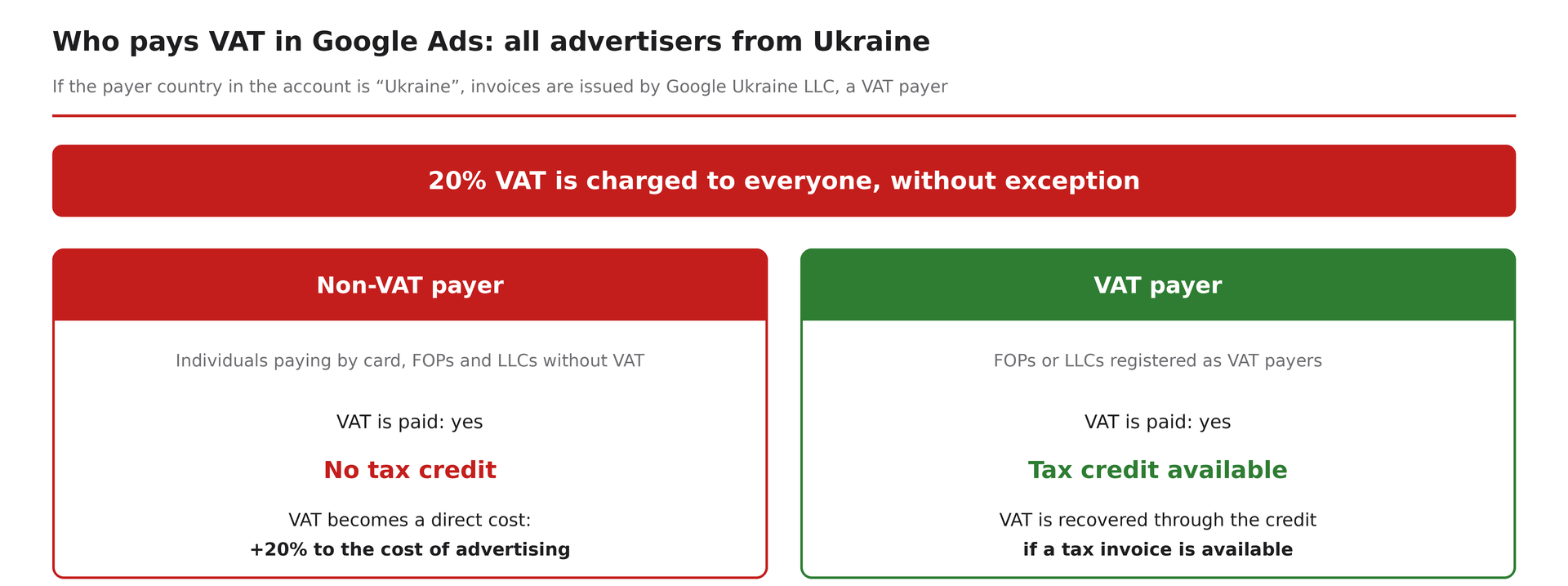
All advertisers from Ukraine pay VAT. The only difference is the right to a tax credit.
The difference between advertiser categories lies not in the charge itself, but in what happens to the VAT next:
| Advertiser category | Is 20% VAT paid | What happens to the VAT |
| Individual paying with a personal card | Yes | Yes Direct cost: advertising effectively costs 20% more |
| FOP not registered as a VAT payer | Yes | Yes Direct cost: no right to a tax credit |
| LLC under the simplified tax system, VAT-exempt | Yes | Yes Direct cost: no right to a tax credit |
| LLC on the single tax without VAT | Yes | Eligible for a tax credit if a tax invoice is available. |
Legislative context: Law of Ukraine No. 1525-IX (the “Google tax”) and Article 208-1 of the Tax Code of Ukraine introduced VAT on electronic services of non-residents for individuals and FOPs who are not VAT payers.
Why VAT is easy to miss
The confusion arises not from inattention, but from the way the Google Ads interface presents information.
1. Campaign costs are shown without VAT
Google explicitly states that the bids and budgets you set in campaigns do not include VAT. Therefore, in campaign reports and in the “Campaigns” line on the “Summary” page, you see “net” advertising costs. The tax is displayed separately.
2. The VAT line is hidden in a collapsed section
On the “Summary” page, VAT is located inside the “Estimated taxes and fees” section. To see the “VAT” line, you need to expand this section. Most users only look at available funds and total cost and never reach this block.
3. VAT is not deducted separately at the moment of top-up
After topping up UAH 12,000, you do not see a separate deduction of UAH 2,000 in tax. VAT is charged as funds are spent, and in the “Transactions” section it appears as a separate line with the type “Taxes and fees”. Unless you review this section specifically, it seems as if there is no tax.
Where to see VAT in Google Ads: 5 ways
All the methods below are shown on real screenshots of the Ukrainian interface of Google Ads. The numbers on the screenshots correspond to the steps of the guide.
Method 1. The “Summary” page: the “VAT” line
This is the main and most visual method. Steps: • sign in to your Google Ads account; • in the left vertical menu, click “Billing” (marker 1); • in the section menu, select “Summary” (marker 2); • if needed, change the period: in the top right, next to “Custom range”, click the date field and select the desired range; • in the month block, for example “September (current month)”, find the “Estimated taxes and fees” line and click it to expand (marker 3); • below it, the “VAT” line will appear with the amount of tax charged.
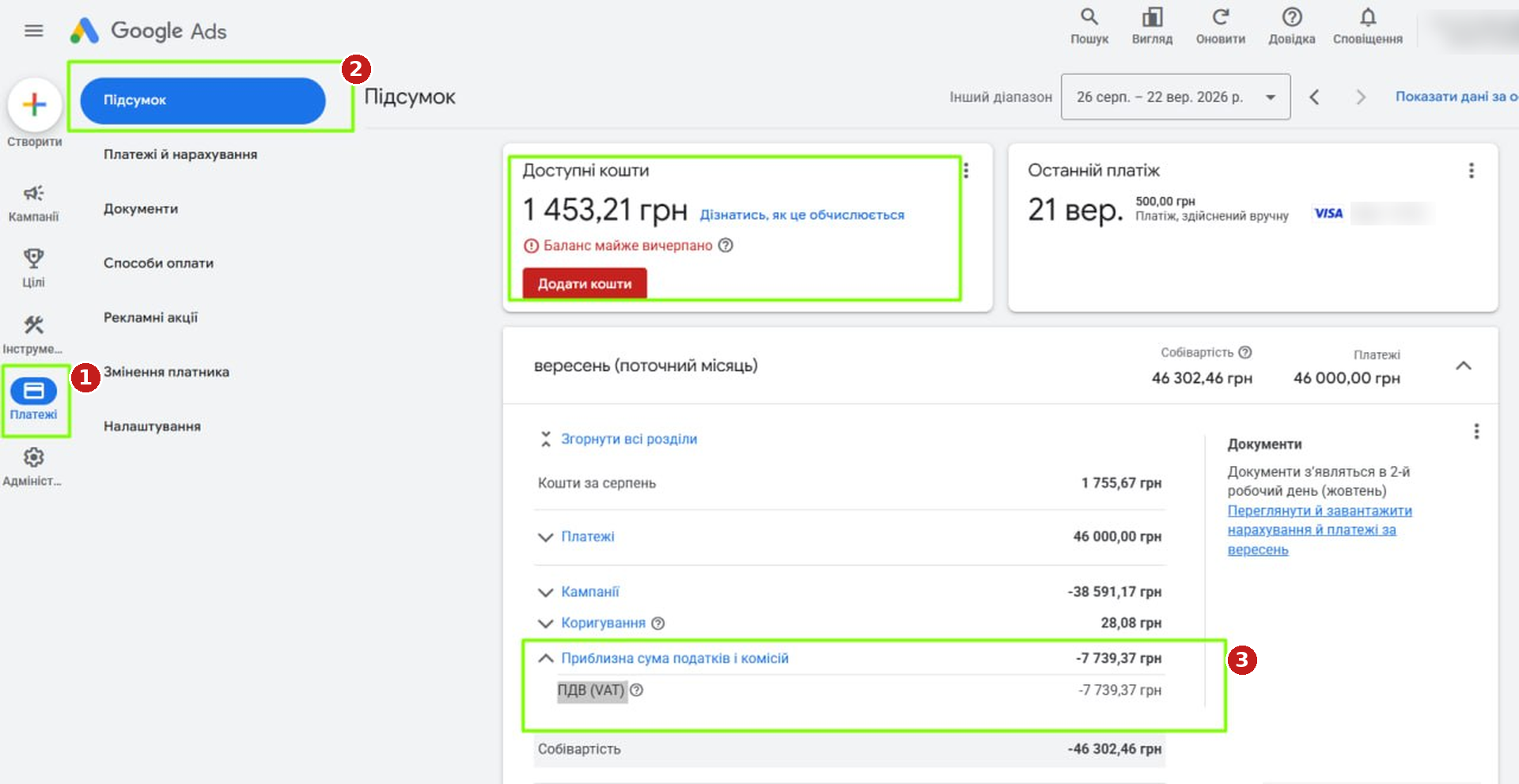
“Billing” → “Summary” → “Estimated taxes and fees” → “VAT”.
How to read the figures on the “Summary” page
A real example from the September screenshot: • “Funds from August”: UAH 1,755.67, the balance carried over from the previous month; • “Payments”: UAH 46,000.00, the total of all payments for the current month; • “Campaigns”: UAH 38,591.17, costs directly for ad impressions; • “Adjustments”: UAH 28.08; • “Estimated taxes and fees”, the “VAT” line: UAH 7,739.37; • “Cost”: UAH 46,302.46.
According to Google Help, the monthly cost consists of all campaign costs, plus taxes and fees, minus adjustments and promotional credits. Let us check this against the figures from the screenshot: Campaigns 38,591.17 + VAT 7,739.37 − Adjustments 28.08 = Cost UAH 46,302.46. In other words, of the more than UAH 46,000 spent during the month, UAH 7,739.37 is VAT. For an individual or a non-VAT payer, this is a direct additional cost. Note the word “Estimated” in the line name: the final amounts are recorded in the monthly documents.
Method 2. The “Funds available” card
At the top of the “Summary” page there is a “Funds available” card. Below the amount there is a “Learn how this is calculated” link (marker 1): click it to see the calculation.
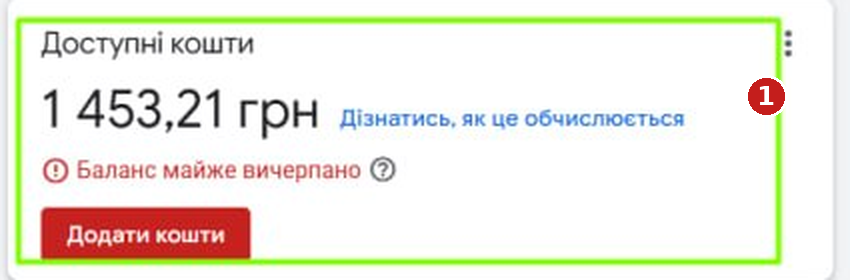
The “Funds available” card on the “Summary” page.
Available funds are calculated as follows: balance from the previous month + payments − cost. In our example: 1,755.67 + 46,000.00 − 46,302.46 = UAH 1,453.21. An important nuance: this is the amount including VAT that you can still spend. That is, of UAH 1,453.21, approximately UAH 1,211 will go to ad impressions, and the rest will become VAT. If a “Balance almost used up” warning appears nearby, keep in mind that every subsequent top-up via the “Add funds” button will also partly go towards paying the tax.
Method 3. The “Transactions” section
Here you can see the full history of fund movements, and VAT is displayed as a separate line. Steps: • in the left menu, click “Billing” (marker 1); • in the section menu, select “Transactions” (marker 2); • in the date field at the top right, select the period, for example “Last 3 months” (marker 3); • in the “Type” column, find the “Taxes and fees” line (marker 4); • in the “Description” column it will show “Estimated VAT” with the period, and the “Cost” column will show the tax amount.
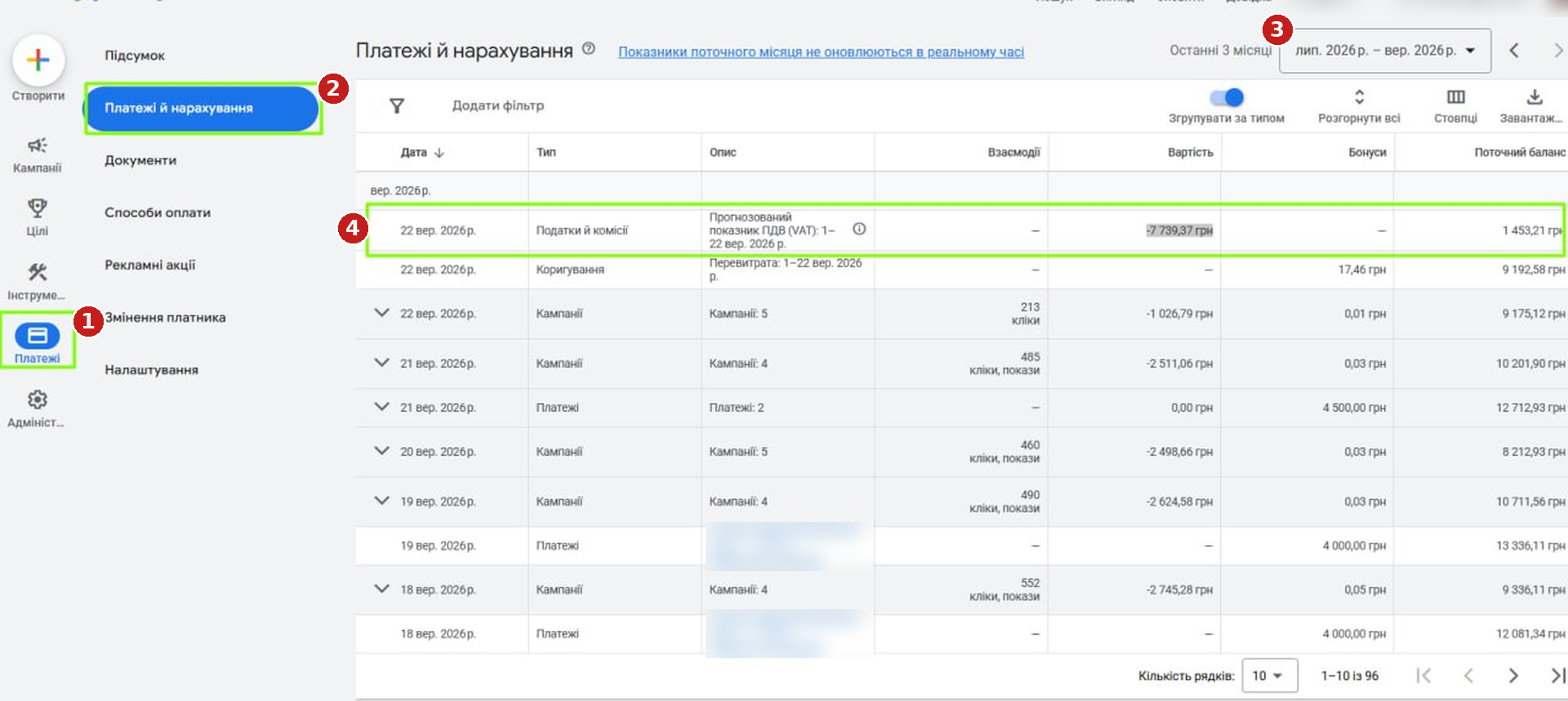
“Billing” → “Transactions”: the “Taxes and fees” line with the estimated VAT figure.
The screenshot shows that for the period of September 1–22 the estimated VAT is UAH 7,739.37, and the “Current balance” column after this line shows UAH 1,453.21, the same amount as in the “Funds available” card. A few useful elements of the page: • the “Group by type” toggle combines transactions of the same type for a day; • “Expand all” opens the details of grouped lines; • “Add filter” helps narrow down the list; • the download button on the right lets you export data for reconciliation with your bank statement. Note the notice at the top of the page: “Current month figures are not updated in real time”. That is why the VAT for the current month is marked as estimated; the final amount will appear in the documents.
Method 4. The “Documents” section
Final amounts are recorded in monthly reports. Steps: • in the left menu, click “Billing” (marker 1); • in the section menu, select “Documents” (marker 2); • the page will open the “Statements” table with the columns “Invoice date”, “Document type”, “Amount” and “Actions”; • find the document for the required month with the type “Report” (marker 3); • click “Download” in the “Actions” column (marker 4).
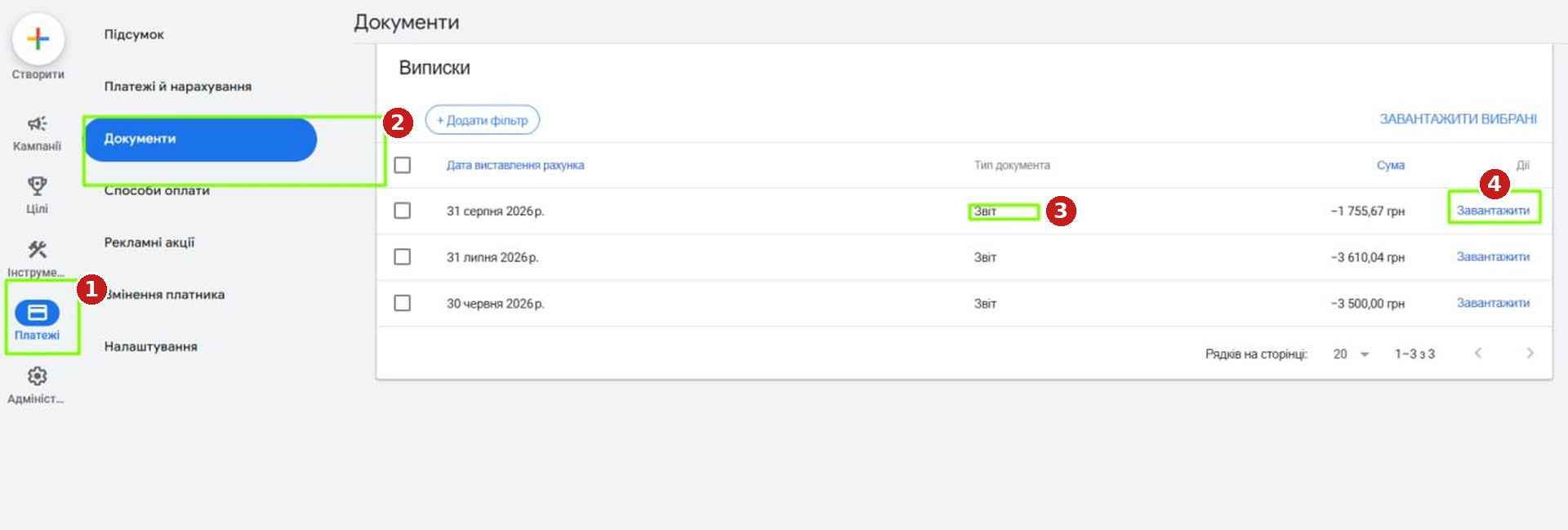
“Billing” → “Documents”: the “Statements” table with monthly reports.
To download several documents at once, tick the checkboxes on the left and click “Download selected”. The “+ Add filter” button helps you find documents for the required period. The same section is reached via the “View and download charges and payments for [month]” link in the “Documents” block on the right side of the “Summary” page. As stated there, documents for the month become available on the 2nd business day of the following month.
Who sees what in the “Documents” section
The “Documents” section itself exists in every account, but the set of documents in it depends on the tax status selected when the account was created. Monthly statements (type “Report”) are available to everyone. However, as Google Help explains, statements are not invoices: they are a summary of all payments for the period, in which new costs are shown together with estimated tax amounts. In other words, VAT is visible in the “Report” to any advertiser, but the “Report” itself is not an accounting document.
Accounting documents for bookkeeping are provided by Google only for the “Sole proprietor” and “Company” statuses. An advertiser with the “Individual” status receives only a payment receipt after each payment.
| Account tax status | Statements (type “Report”) | Accounting documents |
| Individual | Yes | No, only payment receipts |
| Sole proprietor (FOP) | Yes | Yes: invoice for services rendered, certificate of acceptance and transfer of services, advance invoice, statement of mutual settlements reconciliation |
| Company | Yes | Yes, a similar set |
Hence an important conclusion: an individual who pays for advertising by card pays 20% VAT and at the same time does not receive a single document that could confirm these costs for accounting purposes. For FOPs and companies, accounting documents serve as the basis for recording expenses, and for VAT payers also for forming a tax credit. Please note: what matters is the status selected when the account was created, not the legal status of the advertiser. If a FOP registered the account as “Individual”, they will not receive accounting documents. Google states that the status is selected permanently; it can be corrected only through the support team, and the changes will apply only from the date of their activation, without documents for past periods.
Method 5. The “Settings” section: payer details
In the “Billing” section menu, open “Settings”. In the middle of the page, in the “Payments profile” section, the account tax status is shown: it determines which documents you receive in the “Documents” section. Here, also check the payer details: name, address and tax details to which Google issues documents. For VAT payers this is critical, since the ability to use the documents for a tax credit depends on the accuracy of this data.
How VAT is calculated: an example in figures
Google’s formula is simple: advertising costs + VAT = payment amount. The tax is charged on top of actual advertising costs. In practice, this means: • of a UAH 12,000 top-up, approximately UAH 10,000 will go to advertising, and about UAH 2,000 will be VAT; • to get UAH 50,000 of net advertising budget, you need to top up the account by approximately UAH 60,000; • for a quick calculation, divide the top-up amount by 1.2 to get the real advertising budget.
Timing of the charge according to Google Help: if a payment was received on June 10 and fully spent on June 25, the VAT line will appear on June 25. If only part of the payment has been spent by the end of the month, VAT will be charged on the last day of the month on the amount actually spent.
What to do if you are not a VAT payer
Option 1. Include VAT in the media plan
The simplest step: calculate the budget including VAT. The real cost of a click, lead or order for a non-VAT payer is 20% higher than campaign statistics show. Without this adjustment, advertising return metrics look better than they really are.
Option 2. Assess the feasibility of registering as a VAT payer
If advertising budgets are significant, registering as a VAT payer allows you to include the paid tax in the tax credit. After the status change, you should update the details in Google Ads: according to Google Help, this requires contacting support with a scanned copy of the document confirming VAT payer status. The changes will apply only to future documents; reissuing previously issued ones is not possible. The decision on registration should be made together with your accountant, as it affects the entire tax model of the business.
Option 3. Work through the billing partner Billing Media
For FOPs and businesses that are not VAT payers, this is the most cost-effective option. Payment through a partner that is a resident of Ukraine on the general taxation system changes the settlement scheme itself: you sign a contract with a Ukrainian company and receive a full package of primary documents and savings of up to 15%.
Benefits of working with Billing Media: • closing documents to confirm expenses, regardless of the status your Google Ads account was created with; • a personal manager who monitors the balance and tops up the account in advance so that campaigns do not stop;
savings of up to 15%
one partner for paying for Google Ads, Meta Ads, TikTok Ads and other platforms.
FAQ
I pay for advertising with a personal card as an individual. Am I charged VAT?
Yes. The payment method does not affect the charge: if the payer country in the account is Ukraine, 20% VAT is included in the cost of advertising. An individual cannot recover this tax, so it becomes entirely part of the costs.
I am a FOP on the single tax without VAT. Do I pay VAT in Google Ads?
Yes. If Ukraine is specified as the payer country in the account, 20% VAT is paid by all advertisers without exception. For a non-VAT payer, this tax becomes a direct cost.
I am a VAT payer. Why is VAT also deducted from me?
Because Google Ukraine LLC is a VAT payer and includes the tax in the cost of its services. You pay it, but you have the right to include it in the tax credit if you have the proper documents.
Where in the account can I see the VAT amount?
“Billing” → “Summary” → expand the “Estimated taxes and fees” line → the “VAT” line. VAT is also visible in the “Transactions” section as a line with the type “Taxes and fees”.
Why is there no VAT in campaign statistics?
Campaign bids and budgets do not include VAT. The tax is displayed only in the “Billing” section.
I topped up my account with UAH 12,000. How much will go to advertising?
Approximately UAH 10,000. The rest is VAT and is deducted as the funds are spent.
Does a FOP see a report with VAT in the “Documents” section?
Yes. Statements are available for all statuses, and for FOPs accounting documents for bookkeeping are generated in addition.
When do documents for the month become available?
On the 2nd business day of the following month. You can find them in “Billing” → “Documents”.
Who benefits from working with Google Ads through a billing partner?
Above all, FOPs and businesses that are not VAT payers. Through Billing Media they can work under the model without VAT: advertising budget plus a service fee. For VAT payers, this provides no significant financial benefit, since they recover VAT through the tax credit.
Is it possible to recover VAT that has already been paid?
A non-VAT payer cannot recover it: the tax becomes part of the advertising cost. A VAT payer can include it in the tax credit.
Conclusion
VAT in Google Ads is paid by all advertisers from Ukraine: individuals paying by card, FOPs and companies, regardless of whether they are VAT payers. The only difference is whether this tax is recovered through a tax credit or becomes a direct cost. The check takes a minute: “Billing” → “Summary” → “Estimated taxes and fees” → “VAT”. This is exactly where you can see what part of your advertising budget actually goes to tax. Knowing the real cost of traffic changes the approach to planning. For an individual or a non-VAT payer, the extra 20% noticeably affects unit economics. It is for them that working through a billing partner under the model without VAT delivers the greatest savings. VAT payers, in turn, only need correct details in the account and documents received on time for the tax credit.
Are you a FOP or not a VAT payer?
Find out how to work with Google Ads through Billing Media under the model without VAT and receive closing documents to confirm expenses. Our team will analyse your current payment scheme and calculate your savings: partners@billing.media